

Access Your Accounts from Nearly Anywhere
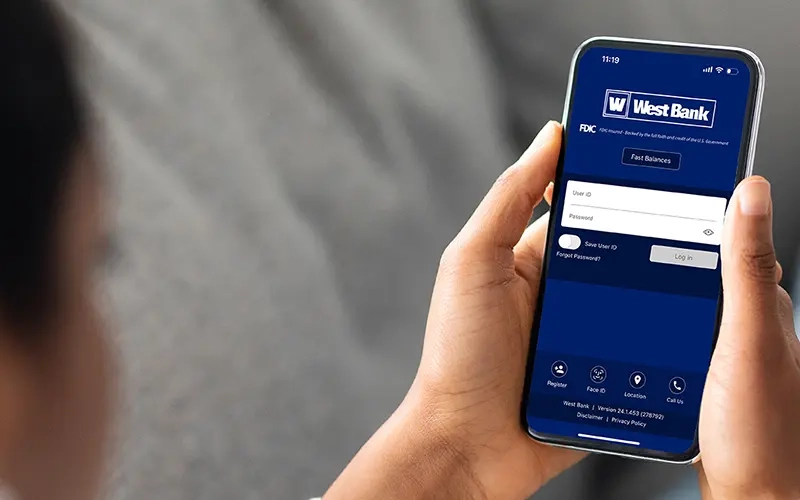
Your smartphone goes almost everywhere with you. With West Bank's Mobile Banking app, that means your access to your accounts goes almost everywhere with you. Our Mobile Banking app allows you to:
- See account balances, transaction history, eStatements, and advanced spending insights
- Set debit card controls based on location, merchant type, and spend amounts
- Report lost or stolen debit cards and turn the card on/off instantly
- Add debit cards to Apple Pay®/Google Pay™
- Deposit checks with Mobile Deposit
- Pay bills
- Set alerts and push notifications
- Add travel plans
The West Bank Mobile Banking app is available for Apple and Android devices. Simply download the app from your device's app store. Once you've downloaded the app, click "Register," fill out the required information and read and accept the Terms and Conditions.


Mobile Banking FAQs Mobile Banking Video Tutorials
Mobile Deposit
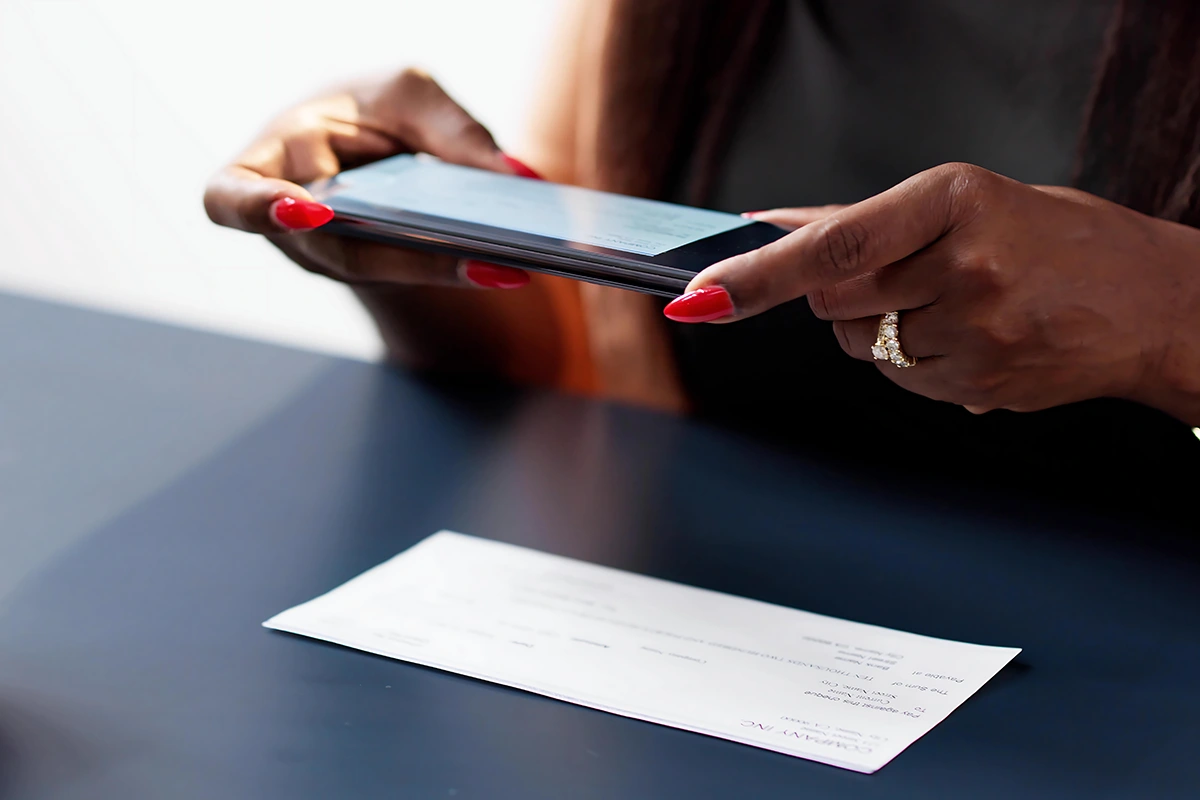
Mobile deposit is a service within the West Bank's Mobile Banking app that allows you to use your device's camera to deposit a check into your account in just a few easy steps. Once you are logged into the West Bank Mobile Banking app:
- Select ‘Deposits’ from the menu and ‘Deposit a Check’
- Select an account to deposit to and key in the amount of the deposit
- Endorse the check – sign your name and write ‘For West Bank Mobile Deposit Only’ on the endorsement line
- Take a photo of the front and back of the check following the prompts in the app.
- Within seconds of submitting the transaction, you’ll receive a confirmation.
Mobile Wallet
You don't always need to carry your debit card to use it to make purchases. With West Bank's Mobile Wallet services, you can add your debit card to your device's Mobile Wallet application. Once added, you'll be able to make purchases online or in-person with merchants that accept contactless payments. Our Mobile Wallet services are compatible with Apple Pay, Google Pay, and Samsung Pay.



Apple Pay is a trademark of Apple Inc., registered in the U.S. and other countries. Google Pay is a trademark of Google LLC. Samsung Pay is a registered trademark of Samsung Electronics Co., Ltd.

Video Tutorials


General Mobile Banking FAQs
Is Mobile Banking secure?
Mobile Banking employs industry best practices with regards to security. Every time you access your accounts online, you are protected with a multi-layer security system designed to identify you in a number of ways. The multi-layer approach uses these three layers:
- Login Credentials - while logging in, you are asked to provide your username and password.
- Device Monitoring - if you login from a device (tablet, phone or PC) that is not recognized you may be asked to verify with a one-time passcode sent via SMS text message or phone call.
- Geographic Indicators - if you're signing in from a location we haven't observed before, we may ask you to verify your identity with a one-time passcode sent via SMS text message or phone call.
What if my phone is lost or stolen?
Mobile Banking users must enter a unique username and password in order to see any information before use. You may also deactivate your phone's Mobile Banking capabilities through Online Banking in the Authorized Devices menu under Settings.
How can I help keep my information safe?
- Use a PIN/password on your devices.
- Only download applications and updates/patches to your devices from a reputable source.
- Install firewall, anti-virus, anti-spyware and anti-malware software on your devices as applicable and keep them current.
- Never access Online or Mobile Banking services using public wi-fi networks or otherwise insecure internet connections.
- Always be wary of an offer “too good to be true” and other phishing emails or texts used to trick a recipient into revealing personal information, clicking on a malicious link, or opening a malicious attachment.
Do I need to be an Online Banking user in order to use Mobile Banking?
Yes. Both are quick and easy to set up.
How do I sign up for Mobile Banking?
Enrolling for Mobile Banking is easy! Simply download the West Bank Mobile Banking app from Google Play or the App Store and register to enroll.
What services are available in Mobile Banking?
Once enrolled, you will be able to check account balances, pay bills, transfer funds between accounts, review account activity and deposit checks.
Is there a fee to download the App?
No, the Mobile Banking app with West Bank is free.
Which accounts can I access on Mobile Banking?
West Bank's Mobile Banking is equipped to provide account information for any account you have set up in Online Banking. You may select which accounts you want to access during the Mobile Banking Enrollment process.
What if I change my phone number?
Please call West Bank Customer Service at 515-222-2360 or 1-800-810-2301 for assistance.
Mobile Deposit FAQs
How secure is Mobile Deposit?
Mobile Deposit is secure. It features multiple layers of security.
What can I do to protect my Mobile Deposit security?
- Don’t use Mobile Deposit in conjunction with public Wi-Fi access.
- Password protect your smart phone and your mobile app with separate and distinct passwords.
- Don’t share your passwords with others.
- Protect your smart phone with malware detection.
- After securely retaining mobile deposited checks for 45 days, dispose of them appropriately by shredding them.
What types of checks can be deposited through Mobile Deposit?
Personal and business U.S. checks can be deposited through Mobile Deposit. Checks from Canada and other foreign countries, savings bonds and poor image quality checks must be deposited at the bank. In Mobile Deposit, do not deposit a check payable to any person or entity other than you (i.e. a check that is payable to another party and then endorsed to you). Do not attempt to deposit a check made out to “Cash” through Mobile Deposit.
What are the Mobile Deposit amount limits?
There is no limit on the number of checks that can be deposited. However, there are per check and total daily dollar limits for West Bank Mobile Deposit.
Single check limit $5,000
Total daily deposit limit $5,000
These limits may change without notice to you.
Where can Mobile Deposits be issued to West Bank?
You can transmit mobile deposits to West Bank 24-hours a day, 7-days a week including weekends and holidays, with the exception of our routine maintenance downtimes. Deposits can be made any time in the Mobile App, and checks are generally credited to your account within two business days.
When will my deposit be credited to my account?
Checks deposited through Mobile Deposit are subject to verification and funds may not be available immediately.
Generally, mobile check deposits received and approved before 4:00 p.m. on a business day will be available the next business day.
Mobile check deposits received Monday through Friday after 4:00 p.m., on weekends, and federal holidays are processed the following business day.
For example:
- Deposit Day Monday Before 4:00 p.m. - Funds Available Tuesday
- Deposit Day Monday After 4:00 p.m. - Funds Available Wednesday
- Deposit Day Saturday Funds Available - Anytime Tuesday
Please see West Bank Online and Mobile Banking Agreement for details.
How do I check the status of a deposit?
In the West Bank Mobile app, on the “Deposits” tab, click the Deposit History link to check the status of your mobile deposits. A “Pending” status indicates that the funds have not yet been deposited to your account. A “Failed” status indicates that your deposit has rejected. An “Approved” status means that the funds have been deposited to your account.
Will I see my mobile deposit in Online Banking under Pending or Recent Transactions?
No, Mobile Deposits cannot be seen in Online Banking until the transaction has posted to your account. In the interim, you can view the status of the deposit in the Deposit History link in the Mobile Banking app.
Will I be notified if there's an error or my deposit failed? If yes, how?
Deposit information is available in the Mobile Banking app by going to the “Deposits” tab and clicking the Deposit History link. A status of “failed” will be displayed when an error is found. The bank will also send you an email notifying you of the error. To receive further information, please contact West Bank Customer Service at 1-855-464-5407.
How do I endorse the check?
Sign your name and write “For West Bank Mobile Deposit only” on the endorsement lines on the back of the check.
What should I do with the original paper checks after deposits are made?
Make a note on the check that it was deposited using Mobile Deposit. Keep the check for 45 days, then dispose of it securely by shredding the check. If there are problems processing your mobile deposit, you may need your original physical check to resolve the issue. An image of the deposited check remains available on your phone for 30 days. You can view your Mobile Deposit history by selecting “Deposit History” within the mobile app.
How do I prevent checks from being scanned and deposited twice?
The software has built-in duplicate detection tools that usually detect items already deposited. If the software detects potential duplicate checks, an alert notifies you that the check is a duplicate.
How do I know the image quality is acceptable?
The software has an Image Quality Assessment (IQA) tool that automatically identifies the problems with the check image. If a problem is detected, you’ll be asked to retake the photo.
Is Mobile Deposit available for eCorp customers?
Yes – Mobile Deposit is also available through the West Bank eCorp Mobile app. Please contact your Treasury Management specialist for details.
Mobile Wallet FAQs
How do I set up my West Bank debit card in mobile wallet?
Open the Apple Pay, Google Pay or Samsung Pay app on your mobile device. Select 'add cards' from the menu and follow the instructions. You may be asked to provide additional authentication information to complete your card set up, including a verification phone call to customer service.
What is the verification phone call process?
When you add your West Bank debit card to a mobile wallet, you may be required to call our customer service line to provide additional verification information. Please be sure to have the following information available when calling in to finalize the set-up.
- Debit card number
- Checking account number
- Last four digits of your social security number
- Information about transactions completed in the last 30 days
Is there a charge to use mobile wallet?
No, West Bank does not charge a fee for customers to use mobile wallet, but standard charges from your cell phone provider may apply.
Will my mobile wallet payment count toward the required transactions of my checking account?
Yes, payments made using your mobile wallet will count toward the number of required transactions required to avoid a service fee.
What retailers support Apple Pay, Google Pay, and Samsung Pay?
You can use mobile wallet at millions of retailers, in app, and online. In stores, look for the contactless symbol (see below) on the terminal when you’re ready to check out.
What do I do if I have additional questions?
Please Contact Us or call West Bank Customer Service at 1-855-464-5407.